Sourcekit® Circus Goggles
Designer: Weihong Guan , Shengyuan Fang (方圣源)
Overview
Sourcekit® Circus Goggles are RGB LED goggles with 32 Pixels. It brings splendid animation effects simply by turing the 5 Knobs onboards.
Layout
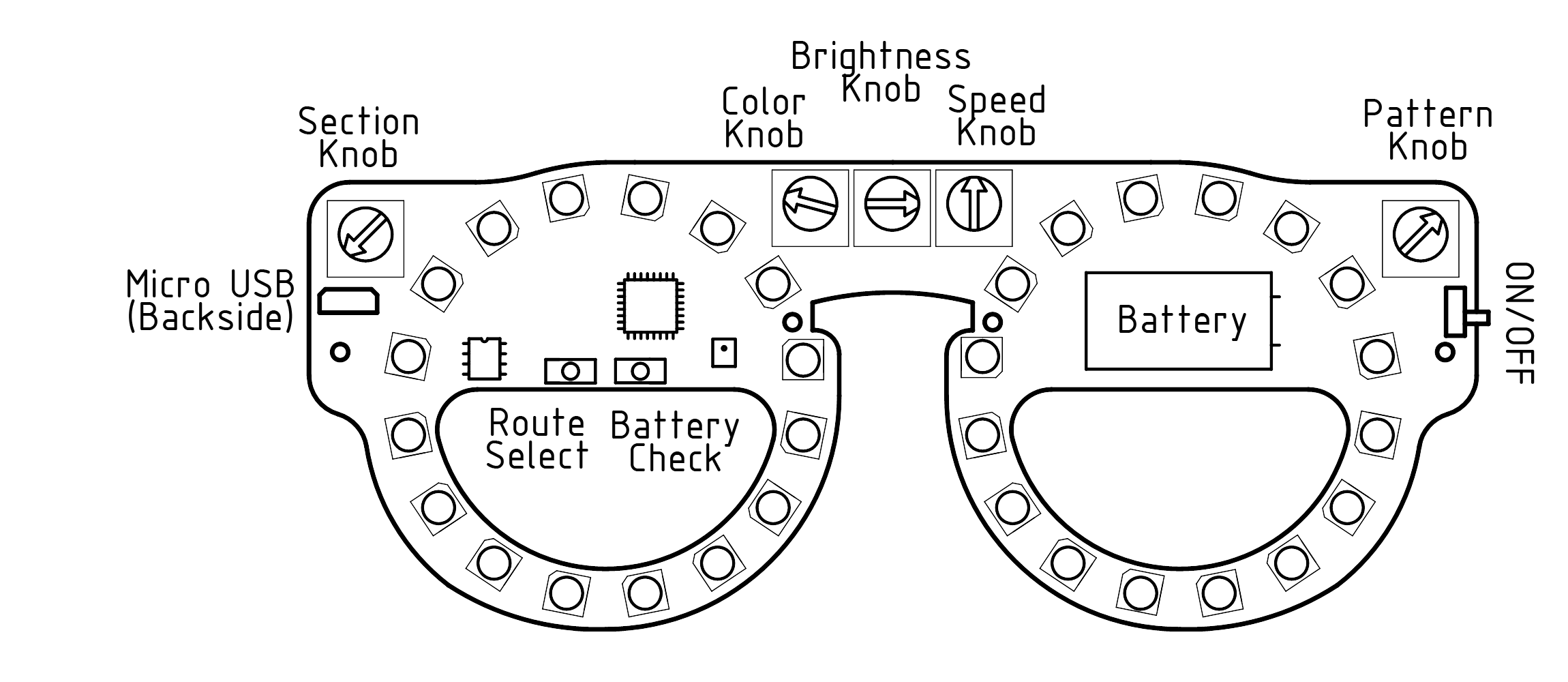
Safety Precautions
Keep away from children. Adult guidance is necessary for children using Circus Goggles.
Do not stare at LEDs when the light is on. It may hurt your eye sight.
Store or play Circus Goggles in dry location and do not allow it to come in contact with water, rain or snow.
If Circus Goggles come into contact with water, place in a dry location at room temperature, on a soft absorbent towel and allow to dry thoroughly. Do not operate the unit until it is completely free of moisture.
Use only an appropriate USB power outlet or PC USB panel to charge the Circus Goggles.
Features
- 32 WS2812 RGB LED shaped in 2 full circles
- 5 knobs to adjust animations
- Main Controlled by a STC8H8K64U microcontroller
- Powered By rechargeable 3.7v/180mAh Li-Ion Battery with Short-Circuit / Overload / Over-Charge / Over-Discharge Protection
- Recharged or Firmware upgraded with a standard 5V 1A micro USB socket
- Battery Voltage Indicator
- Battery life 1 - 6 hours depending on the effects
- Route Switch
- Microphone input as variant
- Battery Charge Indicator LED
- Firmeware upgradable online
Instructions
Turn on the power switch. If no LED is light up, the battery could be dead, please charge it with a micro USB cable for a while. Some LED should light up when it is powered by USB cable. The battery is being charged at the same time.
Tune the 5 Knobs, Section / Color / Brightness / Speed / Pattern, and press the Route Switch Button to the effects you like.
Tuning Guideline
With all these combination from Knobs and routes, Sourcekit® provides thousands of effects without help from 3rd parties, like an remote control, PC or Mobile Application. Inspired by electronic musical instruments, Sourcekit Designers want Circus Goggles to be a standalone product with simple and budget design. With the entry barriers lowered, kids could have fun with easily and explore the led movement or color pattern on their own.
Dim the LED when it gets too bright or slow down the speed when it got too flashing before it hurts your eyes.
Color / Brightness and Speed Knobs work straight forwards.
Pattern Knob has 4 types of Patterns in current firmware.
Single Dot: color would change a little bit based on environmental sound level picked up by onboard micphone.
Comet: the length of tail is controllable by the Brightness Knob.
Full Color Space
Half Color Space
Section Knob has 6 possible values: 1, 2, 4, 8, 16, 32. It means how many replica of the Pattern would be projected to the LEDS. For example, when the pattern is Single Dot and Section is at 1, you would see only one light LED moving. If the section is 8, you would see 8 LEDs of same color moving. So when the section is at its maximum, which is 32 that is also the total LED count, the whole goggles would light up with the same color. But at the meantime, the color knob is adjustable too.
Route Selection Button has 4 routes in current firmware. Route is the way how these 32 LEDs organized in sequel. It would make the animations look totally different from the default Route.
Power Consumption
By pressing the Battery Check button down, Circus Goggles would show up a 3 digits voltage meter (about right) of the battery, with which we could calculate how much battery life left.
Battery Voltage = ( RED LED count ) * 1 + ( Green LED Count ) * 0.1 + ( Blue LED Count ) * 0.01 (unit: volt)
The voltage is about 4.20v when fully charged and 3.40v when stop discharging.
With the battery capacity const, the battery life depends on how the LEDs effects arranged. So the less led is on, the closer the color is to primary Color (Red, Green, Blue), the less current it required.
There is also a Battery Charging Indicator LED (orange) next to the main controller onboard. It will turn on when the battery is being charged and go off when the battery is full and charging is completed.